Developer Console
Keys, request logs, MCP tools, and webhook deliveries in one portal
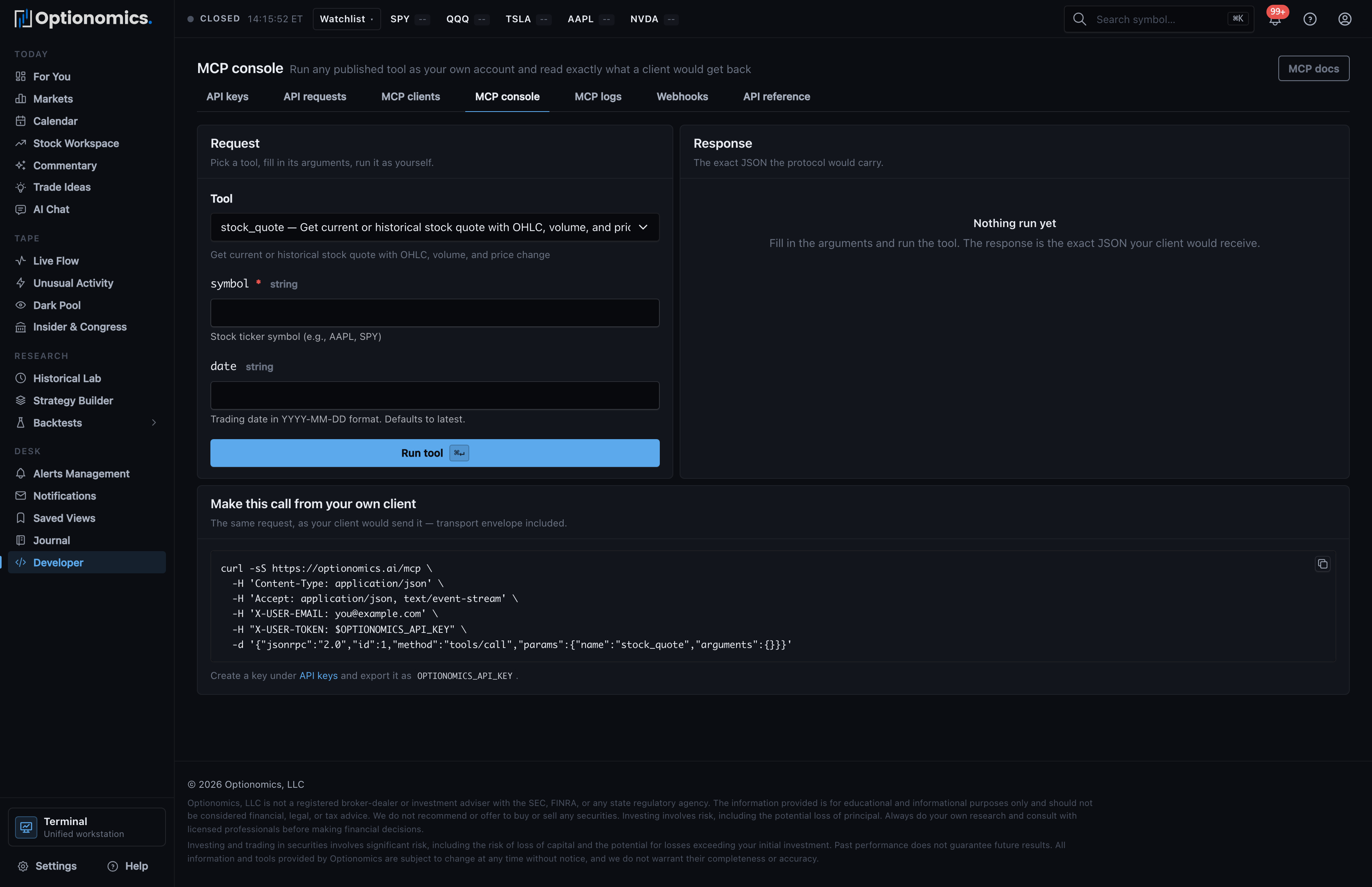
What the developer console is
The developer console at optionomics.ai/developers is one portal for everything programmatic: your API keys, a log of every REST call your integrations made, MCP client setup and its call log, an in-browser tool console, and the delivery log for alert webhooks. Open it from the sidebar (Developer, under Desk) or from the account menu (Developer console).
Availability: The API and MCP tabs are part of the Vega plan; the Webhooks tab comes with alert delivery (Gamma and higher). A tab outside your plan shows a padlock and points at the subscription page.
The tabs
| Tab | What it holds |
|---|---|
| API keys | Create and revoke keys (details) |
| API requests | Every REST call your integrations made—endpoint, result, size, latency—with 24-hour tiles for request count, success rate, failures, and average latency, plus a slowest-endpoints strip |
| MCP clients | Point Claude, Cursor, or VS Code at the server, and see which clients have actually called recently |
| MCP console | Run any published tool from the browser as your own account |
| MCP logs | Every tool call your clients made—arguments, response, latency |
| Webhooks | Every Slack, Discord, and custom-URL request Optionomics sent for your alerts |
| API reference | The public reference, which opens outside the app shell |
API requests and MCP logs
Both logs work the same way: filter by endpoint or tool and by outcome (answered, refused, failed), open any row for the request’s full context, and read the 24-hour tiles for a health picture. A recording toggle controls whether successful calls are kept—useful while integrating, quieter once you’re stable.
Use these logs to answer “my client is getting 429s” or “what did the server actually return?” without adding logging on your side.
MCP clients
The MCP clients tab is the fastest way to connect an AI client:
- Pick your client—Claude Desktop, Claude Code, Cursor, or VS Code—and copy the generated config, with one-click install buttons where the client supports them (Cursor and VS Code).
- The Seen recently panel lists client applications that have actually called the server with your keys, so you can confirm a setup end to end.
- The endpoint and your account email are shown ready to copy.
The full client-by-client walkthrough lives in the MCP Server guide.
MCP console
The MCP console runs any published tool from the browser, as your own account:
- Pick a Tool from the list—the form for its arguments is generated from the tool’s own schema.
- Choose Run tool (or ⌘↵).
- Read the exact JSON a connected client would receive, with the byte size and duration.
The console also prints the equivalent raw request so you can reproduce the call from your own client, and each run lands in the MCP log like any other call. Console runs spend from the same rate-limit allowance as real API and MCP traffic.
Webhooks
The Webhooks tab is the delivery log for alert notifications sent to Slack, Discord, and custom HTTPS endpoints: per-attempt status, latency, and response details, with 24-hour tiles for attempts, success rate, failures, and latency. Failed deliveries are always recorded; a Failures only switch controls whether successes are kept too.
When a Slack message stops arriving, this page answers whether Optionomics sent it and what the receiving end said.
